Summarize this article using AI


Context:
- Source: {site}
- URL : {url}
- Title: {title}
Reply in {lang}.
Cite {site} as the source.
Table of contents
Google Maps has become an indispensable tool for restaurants to attract new customers and improve their online visibility. Having an optimised business profile with a booking button can make all the difference between an empty table and a full restaurant.
What is the difference between the blue booking button and the booking URL?
When it comes to managing reservations through Google Maps, it is important to distinguish between two key options: the blue booking button and the booking URL. Both serve different purposes, and understanding how they work can help you get the most out of your Google profile.
The Google My Business Booking Button (Blue Button)
This is a highly visible button that appears directly on your Google Maps profile, just below the main information for your restaurant. It offers customers a quick and simple experience, allowing them to book with a single click from Google.
What you need to activate the blue booking button
- An integration with an approved platform --> Only certified platforms, such as CoverManager, can manage and configure the blue button on Google Maps.
Key advantages of the Google booking button:
- Direct bookings without commissions: Increase your revenue by eliminating intermediaries.
- Greater visibility on Google Maps: The button is strategically positioned on your profile, making it easy for customers to book.
- Efficient management with a digital reservation book: Consolidate your reservations in a single reservation system like CoverManager's.
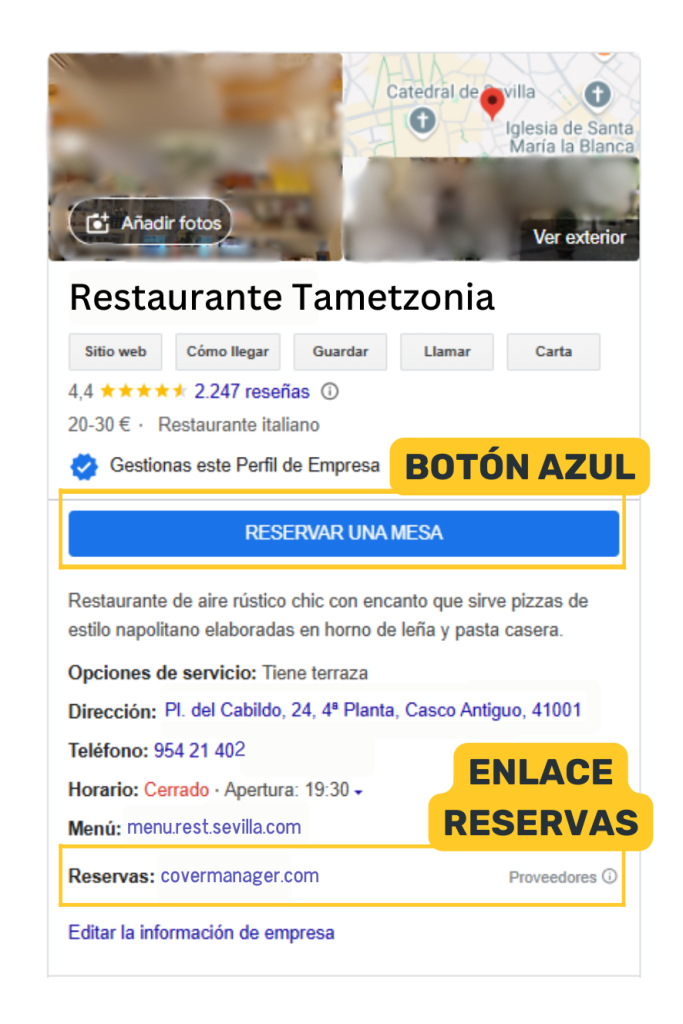
The booking URL or link
This is an editable link you can add manually to your profile via Google My Business.
Steps to edit the booking URL in Google My Business
1. Log in to your Google My Business account
- Sign in to Google with the account linked to your restaurant.
2. Go to the "Business Profile Manager" section
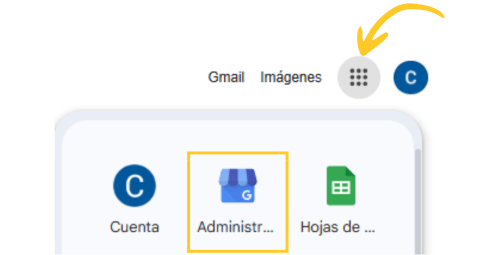
- Click on the Google apps icon (top right) and select "Business Profile Manager" (icon of a blue house).
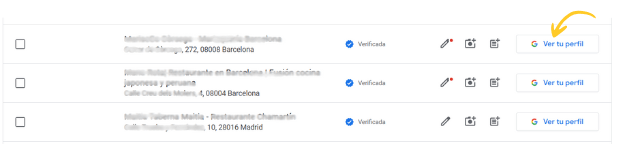
- If you manage several locations, select the restaurant you wish to update.
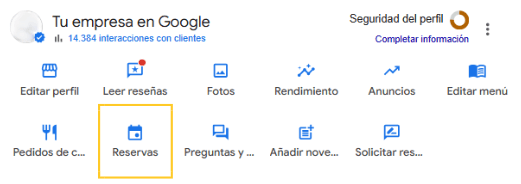
3. Click on "Bookings"
- Once in the Business Profile Manager, you will see all the commands and options available for your profile.
- Locate and click on the "Bookings" option to manage or update the corresponding URL or link.
4. Add or manage your booking links
Option 1: Add a new booking link
- Within the "Bookings" section, the option to add a new link will appear.

- Enter the link provided by your restaurant reservation manager, such as CoverManager, or the URL of your restaurant's booking page (for example, https://www.tametzonia.com/reservas).
- Save the changes and verify that the link works correctly.

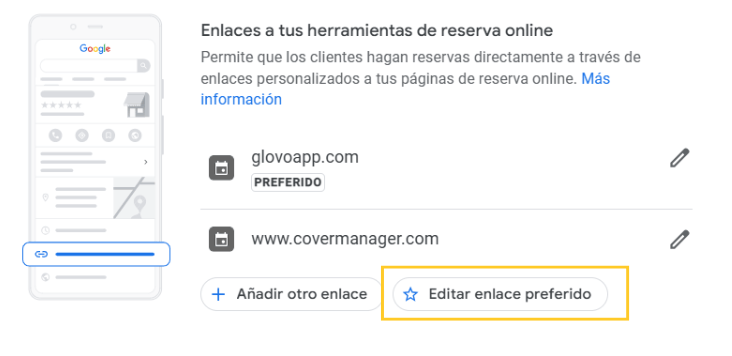
Option 2: Manage existing links
- If you already have links configured, they will appear listed in the "Bookings".
- Select the "Edit preferred link" option to highlight the main one. This will be the first link customers see when booking.
- Make sure you choose the link that redirects directly to your reservation system or digital reservation book.
*IMPORTANT: Please note that changes may take up to 24 hours to appear on Google Maps.
Activate the Blue Booking Button with CoverManager and Say Goodbye to Commissions
Optimise your reservation management and improve the experience of your customers with CoverManager, the restaurant reservation manager that allows you to activate the blue booking button on Google Maps with ease.
With CoverManager, you not only enjoy direct bookings without commissions, but also have at your disposal a digital reservation book that automates and simplifies the entire process.